Setup guide for JubSync
Install, connect HubSpot, configure, use, disconnect, and uninstall.
JubSync syncs Jobber clients, quotes, and jobs into HubSpot contacts and deals so service businesses get CRM pipeline visibility without copying data. Sync is one-way: Jobber → HubSpot. Changes you make in HubSpot are not written back to Jobber.
Install from the Jobber App Marketplace. A shorter walkthrough is in Quick start.
What JubSync does
- Mirrors Jobber clients into HubSpot contacts (matched by email)
- Mirrors Jobber quotes and jobs into HubSpot deals with Jobber-shaped pipeline stages
- When a quote becomes a job, the same deal moves to Closed Won — no duplicate
- Creates the custom properties and pipeline stages it needs on first setup
Install the app
- Open the JubSync listing on the Jobber App Marketplace.
- Click Connect.
- Sign in to Jobber if needed and approve access. JubSync requests read access to clients, quotes, jobs, and account details. It does not write Jobber records (it only calls Jobber's disconnect mutation when you uninstall from the dashboard).
You can also start from jubsync.uycode.com/connect; you will still authorize Jobber first.
Connect a HubSpot account
- After Jobber, you are redirected to HubSpot.
- Sign in and choose the portal that should receive Jobber data. Each Jobber account connects to one portal. HubSpot's free CRM is enough.
- Review the requested scopes on the HubSpot approval screen, then click Connect app.
Until JubSync is listed on the HubSpot Marketplace, HubSpot may show Connecting an unverified app. Type I accept the risk and continue. That step goes away after listing.
Scopes JubSync requests
These match what the app uses. JubSync reads HubSpot contacts and deals to match existing records, and writes to create or update records that came from Jobber. It does not sync HubSpot edits back to Jobber.
| HubSpot scope | Why |
|---|---|
crm.objects.contacts.read | Find existing contacts by email so we don't duplicate them |
crm.objects.contacts.write | Create and update contacts from Jobber clients |
crm.schemas.contacts.write | Create Jobber custom properties on contacts |
crm.objects.deals.read | Find existing deals linked to Jobber quotes or jobs |
crm.objects.deals.write | Create and update deals from quotes and jobs |
crm.schemas.deals.write | Create Jobber custom properties on deals |
crm.schemas.deals.read | Read pipeline stages so Closed Won / Closed Lost map correctly |
Configure the app
Choose a plan
After both accounts are connected you land on plan selection:
- Starter — $39/mo or $29/mo billed annually, with a 7-day free trial. Card required; you are not charged until the trial ends. Cancel anytime before that. Payment is handled by Paddle.
- Early Partner — full Starter features free for a limited time in exchange for feedback. Limited spots. This is a promotional offer, not a Free forever plan.
If you reconnect later, your previous plan is kept and this step is skipped.
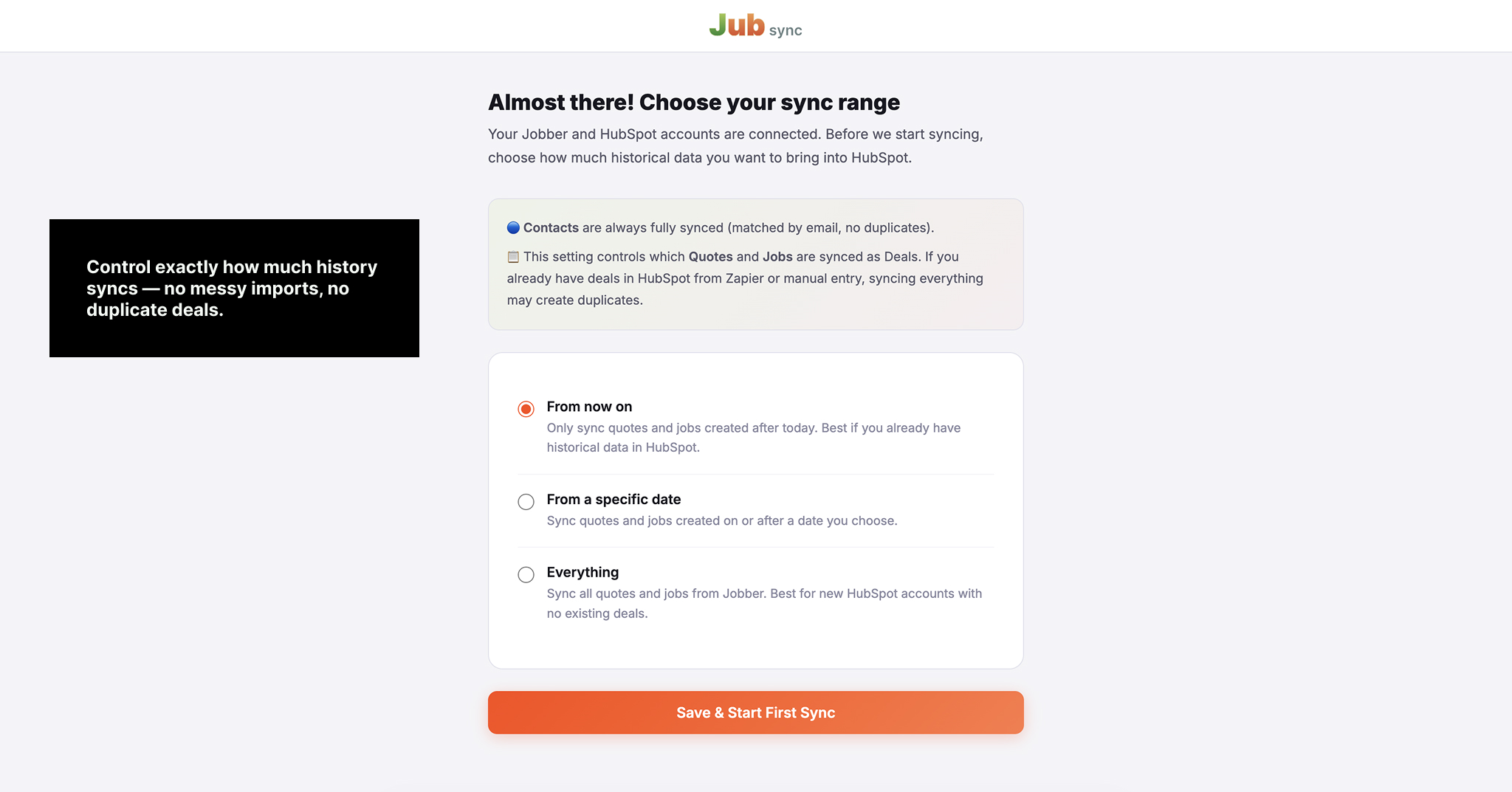
Choose a sync range
On the setup screen, pick how far back quotes and jobs should go:
- From now on — new quotes and jobs only. Safest if HubSpot already has deals.
- From a specific date — quotes and jobs created on or after that date.
- Everything — full Jobber history. Best for an empty HubSpot account.
Clients always sync in full so quotes and jobs can match the right contact. See Connecting & sync range.
On first setup, JubSync creates the custom properties and pipeline stages it needs, then starts the first sync in the background.
Use the app
After setup, sync runs automatically on a regular cycle (about every hour). No daily action is required.
- Sync Now — pull records that changed since the last run, without waiting for the next cycle.
- Force Full Sync — re-read every in-range Jobber client, quote, and job. Use this if you deleted a HubSpot record and want it recreated.
Open the dashboard from Jobber → Apps → JubSync → Manage, or from the link shown after setup.
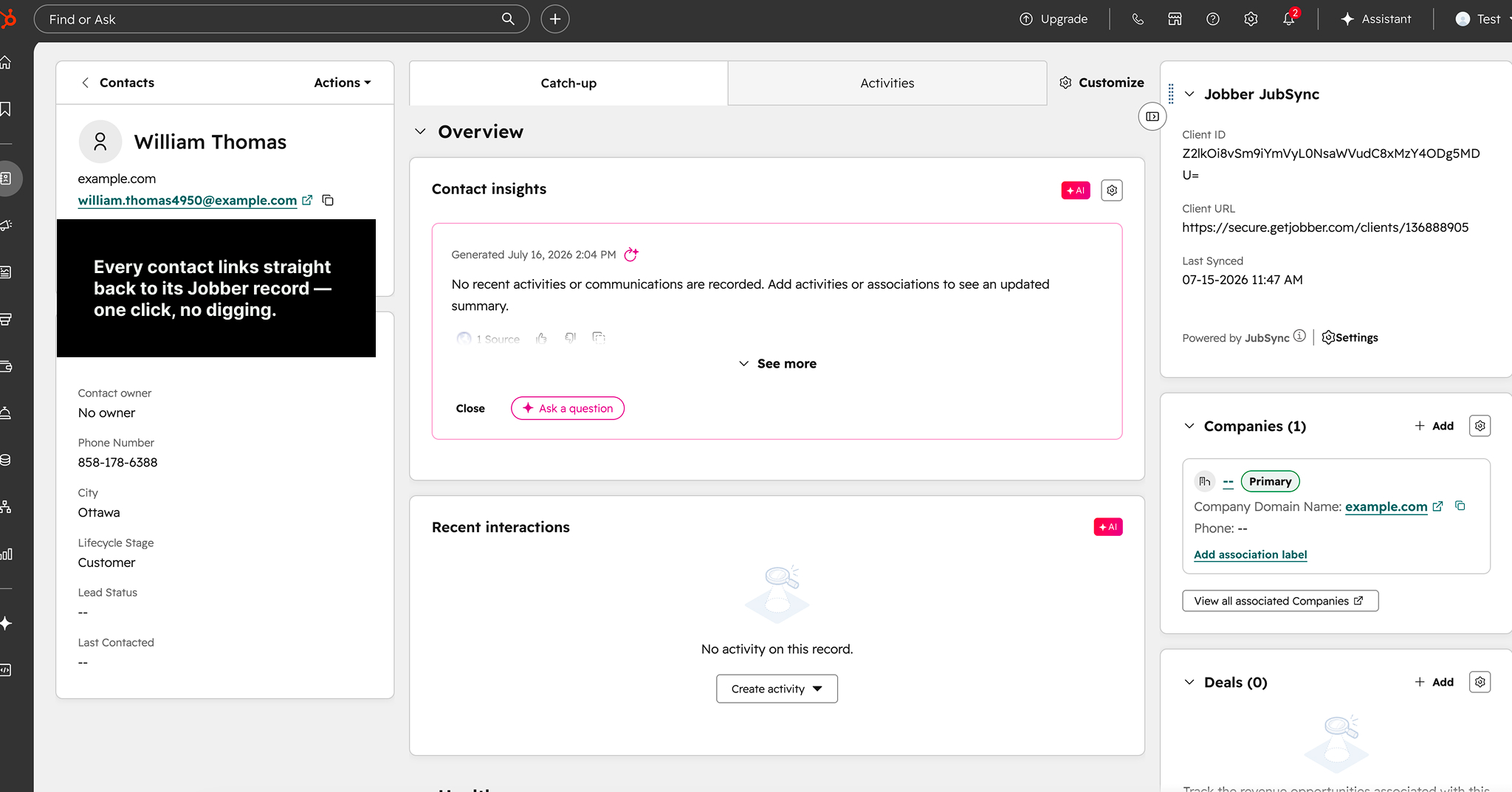
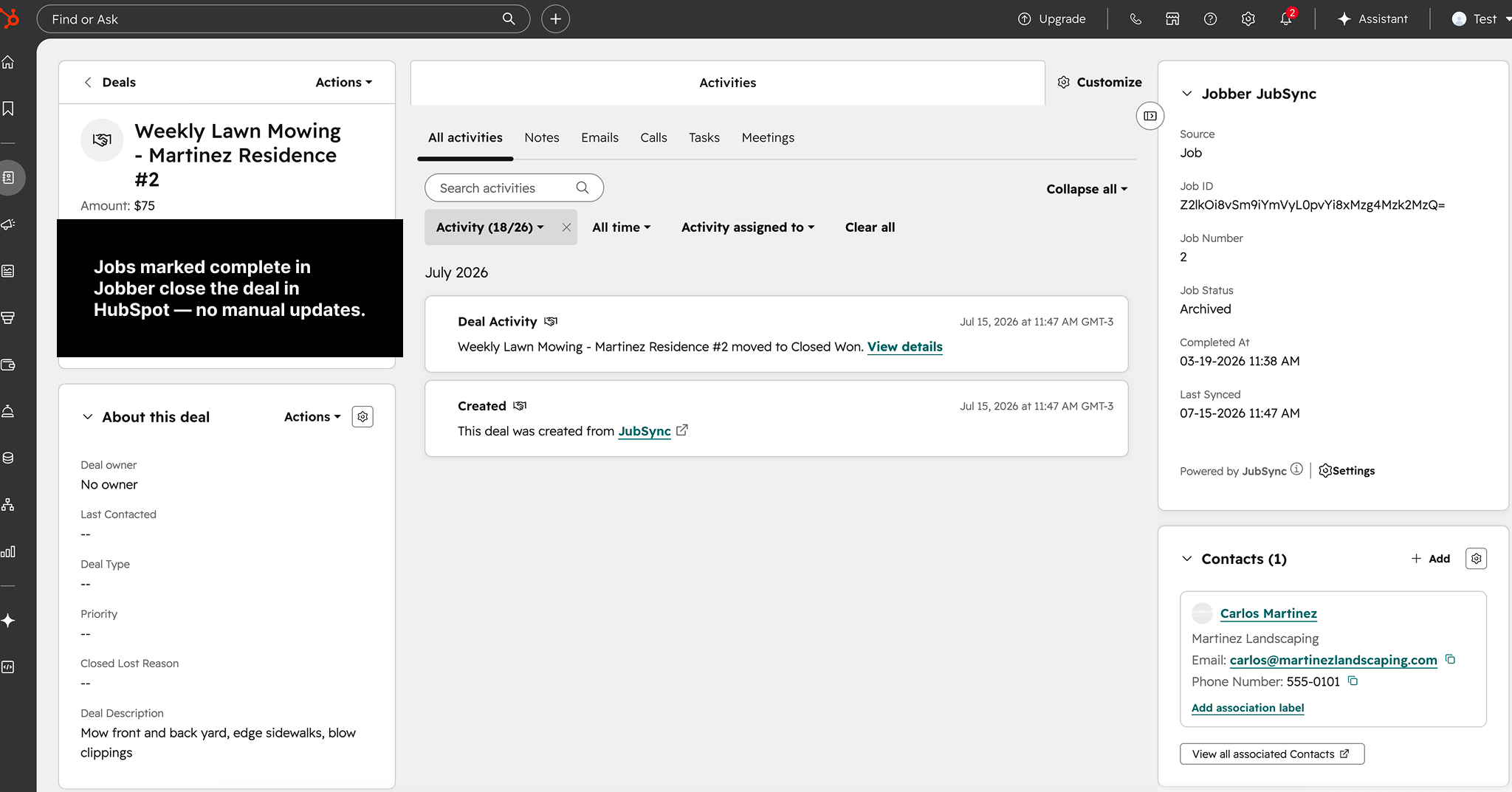
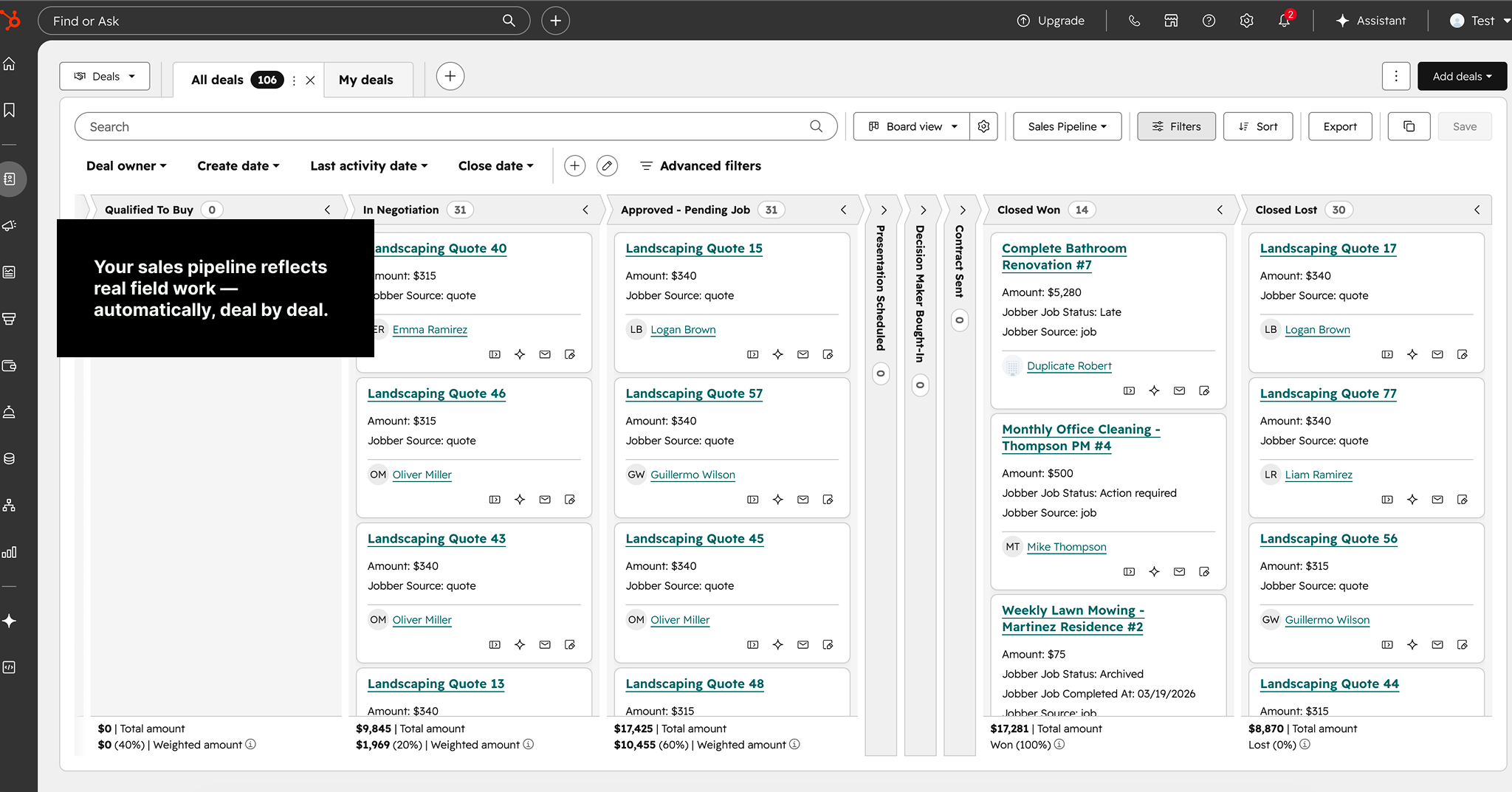
Field mapping: How your data maps. Timing: Sync timing, manual & full sync.
Shared data
Information flows one way from Jobber into HubSpot. JubSync does not store Jobber or HubSpot business records; it keeps encrypted OAuth tokens so it can call both APIs.
| Jobber | HubSpot | Direction | Notes |
|---|---|---|---|
| Clients | Contacts | Jobber → HubSpot | Matched by email. Name, email, phone, company, address, lead vs customer. |
| Quotes | Deals | Jobber → HubSpot | Stages: In Negotiation, Approved - Pending Job, Closed Lost. |
| Jobs | Deals | Jobber → HubSpot | Closed Won (or Closed Lost if cancelled). Reuses the quote's deal when one exists. |
Disconnect a HubSpot account
What happens: sync stops. Contacts and deals already in HubSpot stay as they are. JubSync does not delete HubSpot records. Encrypted tokens for that connection are cleared. You can reconnect later; setup is reused and your plan is kept.
- Open the JubSync dashboard (Jobber → Apps → JubSync → Manage, or your dashboard link).
- Click Disconnect.
- Confirm. Jobber is notified that the app was disconnected.
You can also disconnect from the Jobber App Marketplace under installed apps. That also stops sync.
Uninstall from a HubSpot account
Disconnecting in JubSync or Jobber is enough to stop the integration. To remove the app from the HubSpot portal as well, follow HubSpot's instructions: Uninstall an app from HubSpot.
What happens to data: uninstalling does not delete contacts, deals, custom properties, or pipeline stages that JubSync already created. Those records remain in HubSpot until you change or delete them yourself.
Pricing
Published pricing on jubsync.uycode.com:
- Starter — $39/month or $29/month billed annually, 7-day free trial
- Early Partner — promotional free access for a limited time (not a Free forever plan)
Need help? Help Center or send a message.